Security Groups allow you to control what users can see and interact with in MEX. Using Edit Mode, administrators can configure screen-level restrictions such as hiding controls, making fields read-only, disabling buttons, and setting mandatory fields.
Accessing Edit Mode
- Open the MEX Menu Listing.
- Select More > Edit Mode.
- The Edit Mode Toolbar will appear with Security selected by default.
Creating a New Security Group
- In the Security Group tab, select the + icon.
- Enter a Name for the group.
- Enter a Description.
- Optional: Select a group from Copy Permissions From Group to duplicate its permissions.
- Optional: Select a group from Copy Users From Group to assign the same users.
- Select Create.
Adding / Editing Security On An Existing Security Group
- In the Edit Mode Toolbar, select Security.
- Choose the Security Group you want to modify from the Security Group drop-down list.
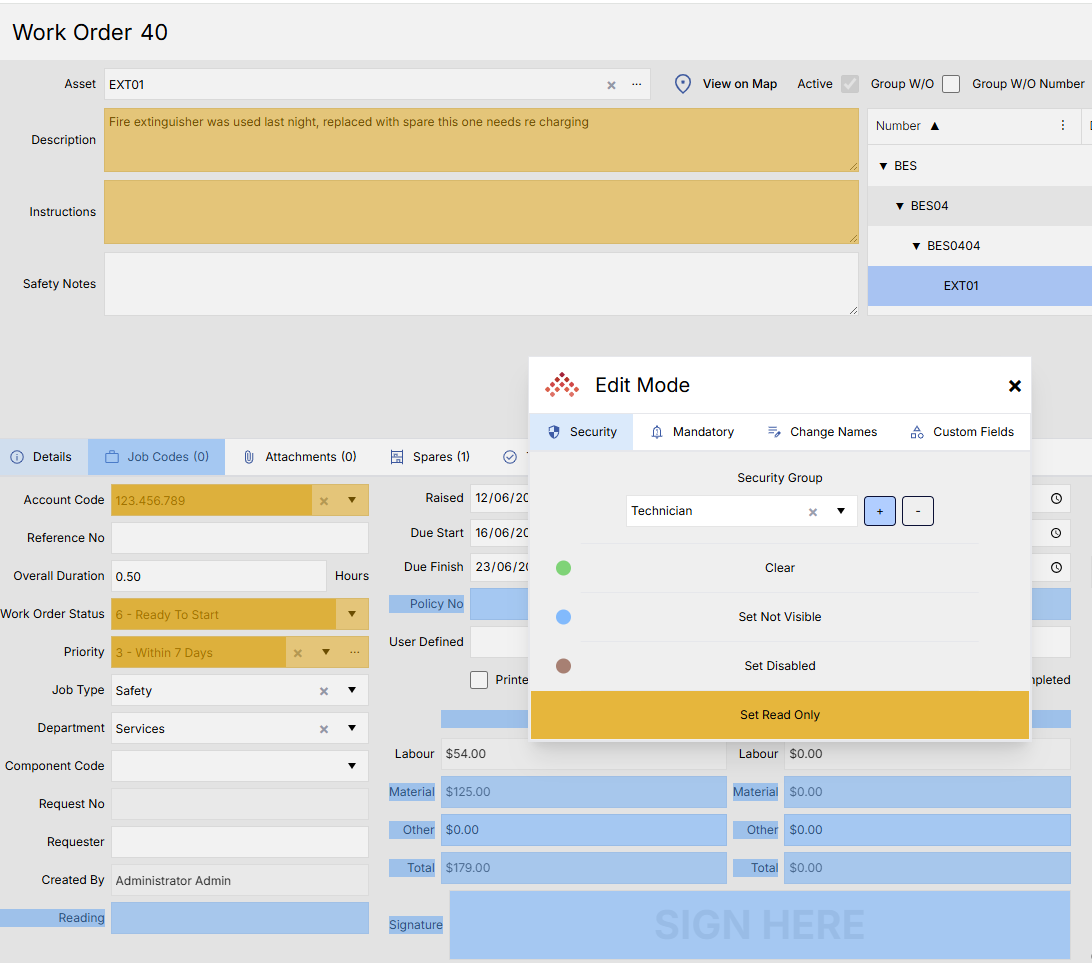
- Select the required security action from the toolbar - This will cause the Action to become highlighted.
- Click the relevant field, button, tab, or control to apply the restriction. This will cause that item to become the colour of the relevant permission. Using the Clear action will remove the colour.
Available Security Actions
| Option | Description |
|---|---|
| Clear (Green) | Removes any existing security restriction from the selected control. |
| Set Not Visible (Light Blue) | Removes the control from the screen for users in the Security Group. |
| Set Disabled (Brown) | Displays the control as disabled and prevents users from using it. |
| Read Only (Yellow) | Allows users to view information but prevents editing. |
For example, you could disable the Delete button in a Work Order Listing, or make the Priority field read-only.
Setting Mandatory Fields
You can also require users in a Security Group to complete specific fields before saving a record.
- In the Edit Mode Toolbar, select Mandatory.
- Select the Security Group to edit.
- Choose one of the following options:
- Zero Value Allowed – field is mandatory, but a value of zero is accepted.
- Zero Value Not Allowed – field is mandatory and cannot be zero.
- Clear – removes the mandatory requirement.
- Click the field to apply the setting.
Fields configured as mandatory are highlighted to indicate the requirement.